
View an Earn Rule
To view
-
Select Rules from the top navigation bar, then select Earn Rules from the side navigation menu. The Earn Rules screen is displayed.
-
Optionally, search for the desired Earn Rule (see
The Earn Rules screen is presented as a spreadsheet-style grid, where each row represents an Earn Rule.
The first column (Calculation Rule) displays the high-level properties of the Earn Rule, such as its name, Activity Type, Metric, and description.
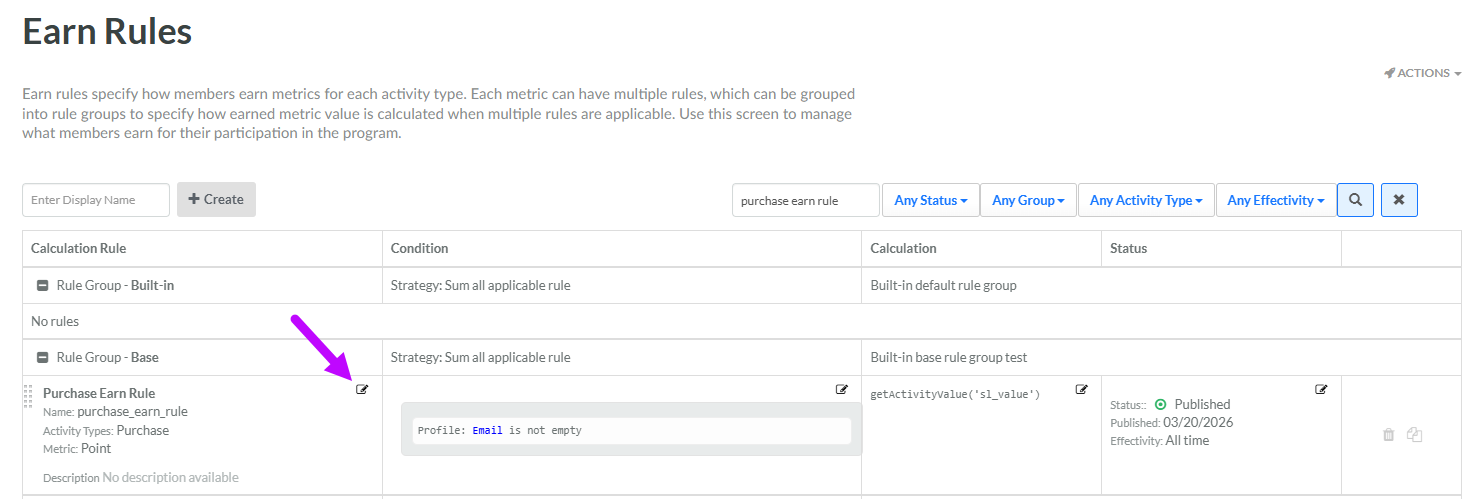
The second column (Condition) displays a descriptive summary of the condition for this Earn Rule. This summary is automatically generated by the platform, and is intended to provide a clear, human-readable description of the condition's rules. If the platform is unable to generate this summary, a message reading "Summary unavailable - View logic in Edit" is displayed. If no conditions have been defined, a message reading "No conditions defined" is displayed. If you edit the conditions for an Earn Rule, the platform will automatically update this summary.
The third column (Calculation) displays a descriptive summary of the Groovy expression used to calculate the Metric adjustment. This summary is automatically generated by the platform, and is intended to provide a clear, human-readable description of the expression. If the platform is unable to generate this summary, a message reading "Summary unavailable - View logic in Edit" is displayed. If the calculation has not yet been defined, a message reading "No calculation defined" is displayed. If you edit the calculation for an Earn Rule, the platform will automatically update this summary.
The fourth column (Status) displays the Earn Rule status, Effectivity Period, and Published Date (for published Earn Rules).
The final column displays icons for editing, copying, and deleting the Earn Rule (the Delete icon is not displayed for "System" Earn Rules).
